MerchantSpring
MCP

Find which accounts need attention, which products contributed to a change and how campaign spend compares with attributed sales. Our MCP lets you work through that reporting in Claude or ChatGPT.

ClaudeChatGPTCursorCodexGemini CLIVS Code

See what needs attention
across your accounts.

Start with the biggest changes, then explore the product and advertising reports that help you decide what to investigate next.

Prioritise the accounts that changed.

Compare sales across accounts, channels and periods to see where growth or decline is concentrated. Use that view to decide which accounts deserve a closer look.

Get the detail behind the headline.

Explore product sales, Amazon Vendor ASIN reports and advertising results. Identify the products contributing to a sales change, or compare campaign spend with attributed sales.

Keep the next review up to date.

Create and manage custom product groups, view and update budgets and forecasts, or work through a guided product-cost upload from your MCP client.

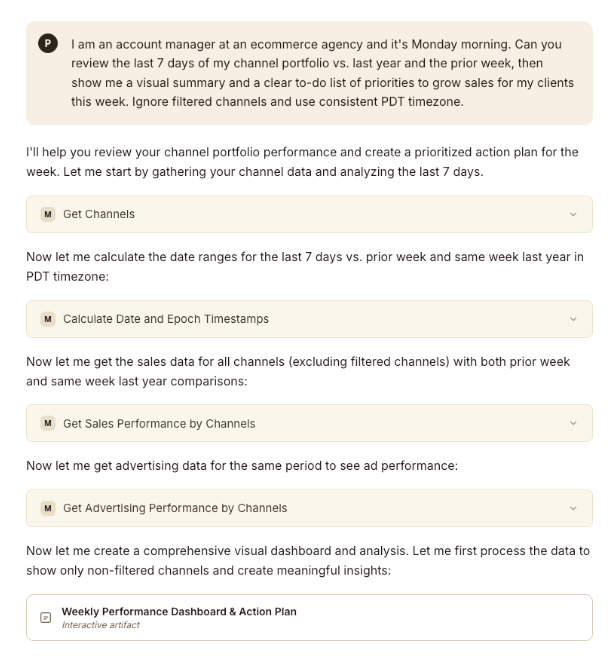
Claude using MerchantSpring channel, sales and advertising tools to prepare a weekly performance review

Start with the questions
you already have.

Choose a complete workflow for account comparisons, product investigations, advertising reviews or weekly summaries. Each prompt asks for the supporting figures and what still needs checking.

See where sales are shifting

Compare weekly sales across your channels and see which accounts deserve a closer look.

View prompt

Find the products moving your sales

Look beyond the headline number to the products contributing most to growth or decline.

View prompt

Make sense of your ad spend

Compare campaign spend with attributed sales and identify questions for your next review.

View prompt

Prepare your weekly sales review

Bring a channel’s results, product highlights and open questions into one concise summary.

View prompt

Explore more prompts and reusable skills for your marketplace reporting.

Explore the prompt library

See where sales are shifting

By the MerchantSpring team

Compare weekly sales across your channels and see which accounts deserve a closer look.

Make it yours

Choose the channels, or use all channels you can access. The default comparison is the last two completed weeks.

What this prompt asks for

  • A sales comparison grouped on a consistent basis
  • The largest increases and decreases in the available data
  • Any missing channels or limits on the comparison

Your prompt

Copy the full prompt, then replace any bracketed details with your own.

Using my MerchantSpring data, compare sales across my connected channels for the last completed Monday–Sunday week against the completed week before it.

1. Use the MerchantSpring data available in this assistant. In an external assistant, use the connected MerchantSpring MCP tools. First check whether you can access the reports this task needs. If data is unavailable, explain what cannot be answered and ask for the missing figures. Do not guess tools, fields or values, or claim you can open files or links unless this assistant supports it.

2. State the exact dates, reporting timezone, currency and sales definition. Check the tax basis where relevant. Ask if an unclear setting would change the comparison. Follow the tools’ documented date boundaries and request each period explicitly if a default comparison differs.

3. Identify the accessible channels and retrieve sales for both weeks, following all result pages. Keep channels that fell to zero in the comparison when the source confirms zero. A missing row is not evidence of zero sales. State any channels or periods that could not be checked.

4. Keep seller sales, vendor ordered revenue and other incompatible measures separate. Do not add different currencies or overlapping views of the same store. Use the returned metadata to assess overlap; similar names or totals do not prove it.

5. Within each comparable group, show prior sales, current sales, the absolute change and percentage change. When prior sales are zero, label the percentage change as undefined. Rank the largest absolute rise and fall within each group. Do not describe a partial result as a complete portfolio ranking.

Return the comparison and a short explanation of where to investigate first. Show the figures behind your explanation and flag anything that prevents a fair comparison. Read data only and do not send the results elsewhere.

A useful next question

For the channel with the largest decline in a comparable group, check whether product sales are available. If they are, show the biggest contributors and any gaps in the breakdown.

Reuse this as a skill

Download the skill and add it to an AI tool that supports skills. You can then reuse this workflow with your own channel and dates. Otherwise, copy the full prompt.

Find the products moving your sales

By Abhi at MerchantSpring

Look beyond the headline number to the products contributing most to growth or decline.

Make it yours

Replace [channel] with your channel. The default comparison is the last two completed weeks; you can ask for different dates.

What this prompt asks for

  • The products contributing most to growth and decline
  • Before-and-after sales, with units where available
  • How much of the channel change the breakdown explains

Your prompt

Copy the full prompt, then replace any bracketed details with your own.

Using my MerchantSpring data, find the products contributing most to the sales change in [channel]. Compare the last completed Monday–Sunday week with the completed week before it.

1. Use the MerchantSpring data available in this assistant. In an external assistant, use the connected MerchantSpring MCP tools. First check whether you can access the reports this task needs. If data is unavailable, explain what cannot be answered and ask for the missing figures. Do not guess tools, fields or values, or claim you can open files or links unless this assistant supports it.

2. State the exact dates, reporting timezone, currency and sales definition. Check the tax basis where relevant. Ask if an unclear setting would change the comparison. Follow the tools’ documented date boundaries and request each period explicitly if a default comparison differs.

3. Retrieve product sales for both periods and channel totals if accessible on the same basis. Follow all result pages and join periods by stable product identifiers. Include products present in only one period, but distinguish missing observations from confirmed zero sales.

4. Show prior sales, current sales and the absolute change for up to five products contributing most to growth and five to decline. Include units if supplied. Rank within a consistent currency and sales definition. Label percentage change as undefined when prior sales are zero.

5. Where matching channel totals are available, compare the summed product sales with those totals for both periods and show any gap. Otherwise explain that the channel-level reconciliation could not be checked. Do not present a partial breakdown as a complete explanation of the channel change.

Summarise the largest contributors and what still needs investigating. Show the figures behind your explanation and flag anything that prevents a fair comparison. The contribution of a product does not prove why its sales changed. Read data only and do not send results elsewhere.

A useful next question

For the three products with the largest declines, separate what the data confirms from the explanations we still need to investigate.

Reuse this as a skill

Download the skill and add it to an AI tool that supports skills. You can then reuse this workflow with your own channel and dates. Otherwise, copy the full prompt.

Make sense of your ad spend

By Abhi at MerchantSpring

Compare campaign spend with attributed sales and identify questions for your next review.

Make it yours

Replace [channel] with the channel whose advertising you want to review. The default comparison is the last two completed calendar months.

What this prompt asks for

  • Campaign spend and attributed sales across two months
  • Efficiency measures where the data supports them
  • The largest spend areas and questions to investigate

Your prompt

Copy the full prompt, then replace any bracketed details with your own.

Using my MerchantSpring data, review advertising spend and returns for [channel] for the last completed calendar month against the completed month before it.

1. Use the MerchantSpring data available in this assistant. In an external assistant, use the connected MerchantSpring MCP tools. First check whether you can access the reports this task needs. If data is unavailable, explain what cannot be answered and ask for the missing figures. Do not guess tools, fields or values, or claim you can open files or links unless this assistant supports it.

2. Confirm the selected channel and available campaign advertising reports. State the exact dates, timezone, currency, included advertising products and attribution basis. Ask if an unclear setting would change the comparison.

3. Retrieve both months with all result pages. Join campaigns by stable identifiers. Compare only compatible advertising products, date ranges and attribution definitions. Label incomplete coverage, reporting delays and missing campaigns.

4. Show campaign spend, attributed sales and their changes. Calculate ROAS and ACoS only where compatible spend and attributed sales are available with a nonzero denominator. Show clicks, impressions and CPC only if returned on the same basis. Compute totals from summed values, not averages of row-level rates.

5. Identify the three campaigns with the most spend, or fewer if fewer qualify. Show the evidence for any suggested area to investigate. Ad-attributed revenue is not profit and does not need to equal transaction sales. Do not infer an organic sales split or a TACoS figure from incompatible reports.

Return a concise campaign comparison, coverage limits and up to three useful questions. Show the figures behind your explanation and flag anything that prevents a fair comparison. Do not change campaigns, bids or budgets, or send the report elsewhere.

A useful next question

For the highest-spend campaigns, compare spend and attributed sales with the prior month. Separate what the data shows from explanations that need more evidence.

Reuse this as a skill

Download the skill and add it to an AI tool that supports skills. You can then reuse this workflow with your own channel and dates. Otherwise, copy the full prompt.

Prepare your weekly sales review

By Abhi at MerchantSpring

Bring a channel’s results, product highlights and open questions into one concise summary.

Make it yours

Replace [channel] with the marketplace or store channel you want to review. The default comparison is the last two completed weeks; change the dates if needed.

What this prompt asks for

  • A weekly sales summary, with units where available
  • Product highlights where the breakdown is available
  • Open questions to take into your next review

Your prompt

Copy the full prompt, then replace any bracketed details with your own.

Using my MerchantSpring data, prepare a weekly sales summary for [channel]. Compare the last completed Monday–Sunday week with the completed week before it.

1. Use the MerchantSpring data available in this assistant. In an external assistant, use the connected MerchantSpring MCP tools. First check whether you can access the reports this task needs. If data is unavailable, explain what cannot be answered and ask for the missing figures. Do not guess tools, fields or values, or claim you can open files or links unless this assistant supports it.

2. Confirm the selected marketplace or store channel and the sales measure its available report uses. Use that same measure for both weeks and label it clearly, such as sales, ordered revenue or shipped revenue. Do not treat different measures as interchangeable. State the exact dates, reporting timezone, currency and tax basis where relevant. Ask if an unclear setting would change the comparison. Follow the tools’ documented date boundaries and request each period explicitly if a default comparison differs.

3. Retrieve channel sales for both weeks, plus units if returned. If compatible product sales are also available, retrieve both weeks and follow all result pages. Join periods by stable product identifiers, including products present in only one period where the report permits. Do not treat missing observations as zero. If product detail is unavailable, continue with the channel summary and say which part could not be checked.

4. Show prior sales, current sales and the absolute change, plus percentage change when prior sales are nonzero. Where product detail is available, compare its totals with channel totals only when the dates, currency, tax treatment and sales definition match. Show any gap or missing coverage. If a breakdown is incomplete, label its contributors as partial.

5. Where product detail is available, show up to five products contributing most to growth and five to decline, ranked by absolute sales change. Include current sales, prior sales and units where available. Label percentage change as undefined when prior sales are zero. Do not invent a product breakdown to complete the summary.

Return a short summary, product contributors where available and up to three questions worth investigating. Show the figures behind your explanation and flag anything that prevents a fair comparison. Do not invent causes, change account data or send the report elsewhere.

A useful next question

What does this week’s data confirm, and what should we check before deciding where to focus next? Use product detail only if available.

Reuse this as a skill

Download the skill and add it to an AI tool that supports skills. You can then reuse this workflow with your own channel and dates. Otherwise, copy the full prompt.
120+ marketplace and
ecommerce connections.

Bring your connected MerchantSpring accounts into the conversation, from Amazon Seller and Vendor to your wider multichannel business.

A few things
to know.

How do I connect MerchantSpring to my AI tool?

Choose MerchantSpring in your AI tool’s connectors, or follow our setup guide for that client. Sign in with your MerchantSpring account and authorise access. Start with the Claude setup guide or the ChatGPT setup guide.

What data can I explore?

Explore sales, products, advertising and other available reports from your connected MerchantSpring accounts. The reports and actions available depend on your channels, plan and permissions.

How current is the data?

MCP works with the latest data available in MerchantSpring. Updates follow each marketplace’s reporting and processing schedule, just as they do in the dashboard.

Can MCP update anything in MerchantSpring?

Yes. Alongside reporting, supported workflows include creating and managing custom groups, viewing and updating budgets and forecasts, and guided product-cost uploads with status checks.

What access do I need?

You need a MerchantSpring account with the required API access and a compatible AI tool. Data retrieval uses your MerchantSpring API-call allowance; AI processing uses your AI provider’s subscription or usage limits. MCP does not use MerchantSpring AI credits.

When should I use the API instead?

Use MCP for questions and workflows inside a compatible AI tool. Use the API when building custom dashboards, applications or recurring production integrations. Explore the API documentation.

See what you can ask
of your marketplace data.

Book a demo to explore MerchantSpring MCP and how it could support your next account, product or performance review.

Book a demo